
May 6, 2026·1 min read
Redefining Hiring in the Age of AI
Move beyond memorized answers. Easyenv redefines hiring by focusing on critical thinking, soft skills, and effective AI usage to find the talent that truly matters.

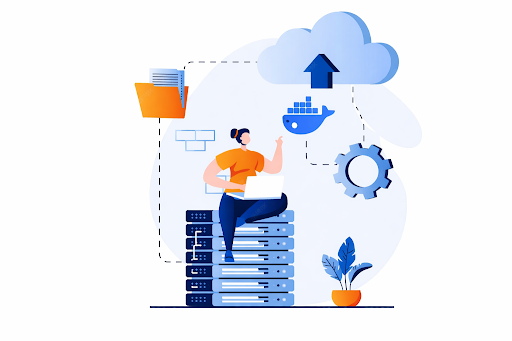
What is Docker?
Before Docker, moving your code to a server was a nightmare.
Imagine you are trying to ship three things in the same truck: a delicate piano, a heavy iron safe, and a sack of coffee beans. If you just throw them all in together without protection, the safe will crush the piano, and the piano will smash the coffee. It is a mess.
This is exactly what happens with software.
You write code on your laptop. It works perfectly because you have everything set up just right (the right settings, the right files). But when you send that code to a server, it crashes.
Why? Because the server is different. Maybe it has an older version of Python, or it is missing a specific file. Your code fits your laptop, but it doesn't fit the server.
This is the famous "But it works on my machine!" problem. Docker fixes this by putting your code in a "box" so it works everywhere.
How Docker helps
The global shipping industry solved this problem in the 1950s with the Intermodal Shipping Container.
A standard steel box with the same size everywhere.
Ships, trucks, and trains all know how to handle the standard box. They do not care what is inside.
A piano, coffee, or a car. They all go in the same box, move the same way, and arrive safely.
Docker is that container for software.
It wraps your application and everything it needs (code, libraries, OS files, settings) into one standardized box.
You (The Developer): Put your code in the container.
The Server (The Shipping Fleet): Just runs the container. It does not care if it is Python, Java, or Node.js. It just runs the standard box.
Result: If it runs on your laptop, it runs on the server. Always.
To understand why Docker is special, we need to understand how computers actually work.
What is the Kernel?
Your operating system (Windows, macOS, Linux) has two main parts:
The Kernel: The "brain" of the computer. It sits between your applications and the hardware. Every time your app needs something from the hardware (CPU, memory, hard drive), it must ask the Kernel first. The Kernel talks to the hardware and gets the job done.
The Application Layer: Everything you see and use. Your code, your libraries, your files, your settings.
Think of it like a restaurant:
The Kitchen Staff (The Kernel): The workers who actually cook the food and manage the ovens and equipment.
The Waiters (The Applications): They take orders and tell the kitchen what to do.
When you run an application, it does not talk directly to the hardware. It asks the Kernel, "Please give me memory" or "Please read this file." The Kernel handles it.
Virtual Machines (VMs) = Building a Second House
A Virtual Machine is like building a complete guest house in your backyard.
The guest house has its own foundation.
It has its own electrical system (its own Kernel).
It has its own kitchen staff (its own set of hardware drivers and services).
When a guest arrives, they must fully set up the house. The electrical system must start. The kitchen staff must arrive. The plumbing must be activated. This is called "booting" and takes minutes.
Because the house is completely separate, it needs a lot of resources. The foundation takes space. The electrical system takes space. Everything is doubled. This is why VMs are so large (multiple gigabytes) and slow to start.
Inside the VM is a full copy of everything that makes a computer a computer. It is like buying a second house just to have a second kitchen.
Docker Containers = Setting Up a Tent in Your Backyard
A Docker Container is much smarter. It is like setting up a tent in your backyard.
The tent uses the backyard's foundation (the House's foundation). It does not have its own.
The tent uses the house's electrical system (the Host Kernel). It does not have its own.
The tent is completely separate from the house and other tents. You have privacy. But you share the infrastructure.
The tent sets up instantly. No need to dig a foundation or install electrical wiring. It is already there.
The tent uses minimal space and resources.
When your application inside the container needs something from the hardware, it asks the Host's Kernel, not its own Kernel. This is why containers are so fast to start (milliseconds) and use so little memory.
The Key Difference:
VM: Has its own brain (Kernel). The brain must wake up and initialize. Takes time.
Container: Shares the host's brain (Kernel). The brain is already awake. Starts instantly.
This is why Docker is revolutionary. You get the isolation (the tent is private) without the weight (you do not need your own electrical system).
An Image is a read-only file. It contains the instructions on how to create the app.
It lists the ingredients (libraries, code).
It lists the steps (how to install dependencies).
Important: You cannot "eat" a recipe card. You cannot "run" an image directly. It is just a stored file.
A Container is the result of running an image.
If the image is the recipe, the container is the cake you baked using that recipe.
You can bake 50 identical cakes (containers) from one recipe card (image).
You can eat the cake (interact with the container), but if you destroy the cake, the recipe card is still safe in your drawer.
Docker Hub is the world's largest library of recipe cards.
Imagine a giant supermarket where every aisle has free recipe cards for any software you can imagine.
Do you need a database? Go to the "Databases" aisle and grab the PostgreSQL recipe (Image).
Do you need a web server? Grab the Nginx recipe.
Official Images: These are recipes written by the companies themselves (e.g., the official Python image is made by the Python team). They are safe and verified.
Community Images: These are recipes written by regular people. Always check if they are trustworthy before using them.
When you type docker pull, you are asking Docker to go to this supermarket (Docker Hub) and bring a copy of the recipe card to your computer.
Start Docker in EasyEnv Environment
Instead of dealing with a complicated setup or installing software on your own computer, you can simply use EasyEnv.io. It is ready to go instantly.
To start your environment, follow these steps:
Start a New Workspace
You can start in two ways:
Option A: Click the blue Go to Workspaces List button on your dashboard.
Option B: Click Workspaces in the left menu, then select Workspace List.
Once there, click the + New Workspace button.
Add Box and resources
Click Add Boxes & Resources. Use the search bar to find "Docker" or check the boxes for the listed resources.
Finish
Type a Name and choose a Duration. Click Create.
Run
Find your Workspace and click Start (▶). When it says Running, click Console.
That's it! Your workspace is now ready to use.
Now your EasyEnv workspace is live. Let's learn the commands that control Docker.
1. docker pull
What it does: Downloads an image from Docker Hub to your workspace.
Command:
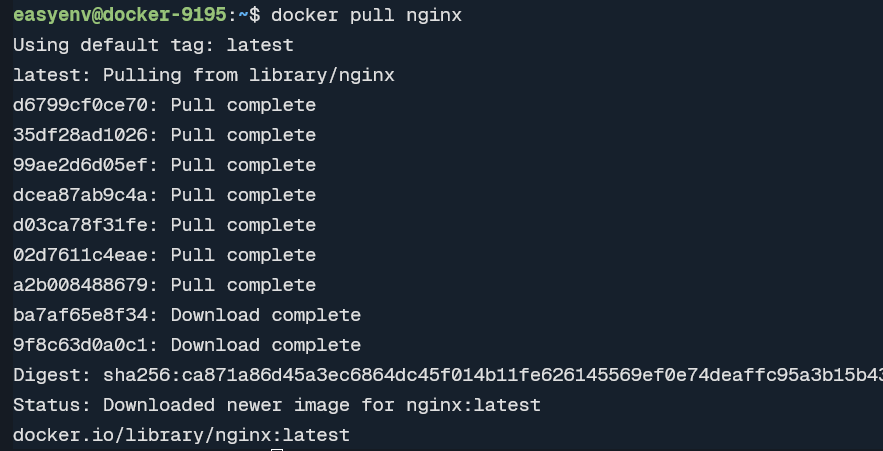
docker pull nginx
Analogy: You go to the Docker Hub supermarket and pick up the recipe card for "Nginx". You bring it home and put it in your drawer.
Technical: Docker connects to Docker Hub and downloads the "nginx" image (read-only file) to your EasyEnv workspace.
Result: You now have the recipe. Nothing is cooking yet.
 s
s
Tip: You can ask for a specific version:
docker pull nginx:1.23
(Get the 1.23 version of the recipe)
Command:
docker images
Analogy: You open your kitchen drawer to see which recipe cards you have collected so far.
Result: You see a list with:
REPOSITORY: The name (e.g., "nginx")
TAG: The version (e.g., "1.23")
SIZE: How big the card is.

Command:
docker run -d -p 8080:80 --name my-web nginx
Analogy: You take the Nginx recipe card and start cooking. You set up a tent in the backyard to serve the food.
Technical:
nginx: The recipe to use.
-d (Detached): Cook in the back kitchen (background). Don't freeze my terminal.
-p 8080:80 (Port Mapping): This is the service window.
Port 80 is the counter inside the tent.
Port 8080 is the window outside (on your EasyEnv workspace).
--name my-web: You name this specific tent "my-web" so you don't confuse it with others.
Result: You will see a long code (like 1a82b4f4...). This is your Container ID, which confirms it started successfully.

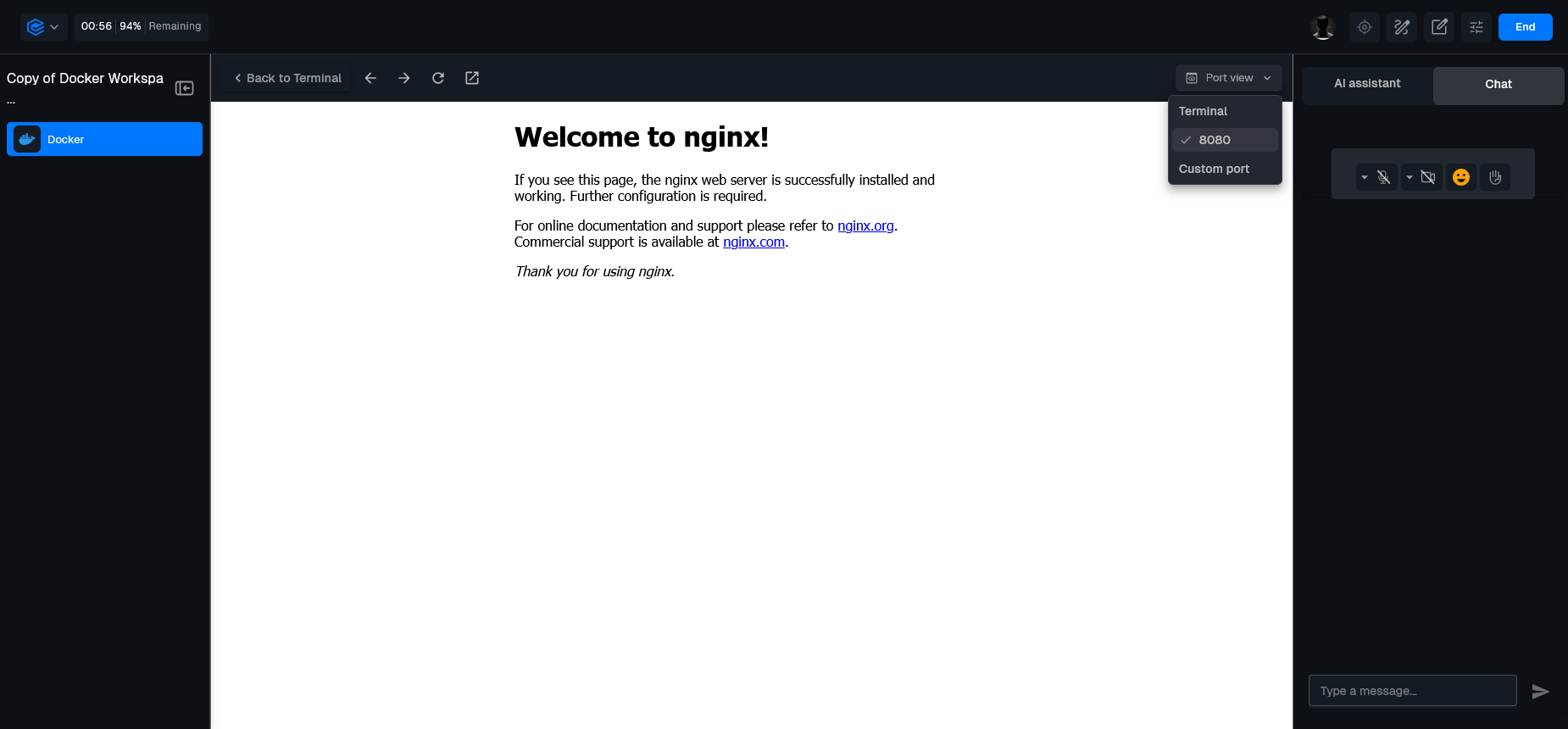
How to see your website:
Click Port view (top right of the terminal).
Click Custom view.
Type 8080 and click Open.
You will now see the "Welcome to nginx!" page.
What it does: Shows a list of all currently running containers.
Command:
docker ps
Analogy: You look at your backyard to see which tents are currently set up and have lights on.
Result: You see a list showing:
CONTAINER ID: Unique ID
IMAGE: Recipe used ("nginx")
STATUS: "Up n minutes" (The tent is standing)
PORTS: "8080->80" (The service window is open)

What it does: Shows a list of all containers, including stopped ones.
Command: docker ps -a
Analogy: You look at the backyard. You see the standing tents, but you also see the piles of canvas where tents used to be (stopped containers).
Result: Shows everything. This is important because a "stopped" container still takes up space.
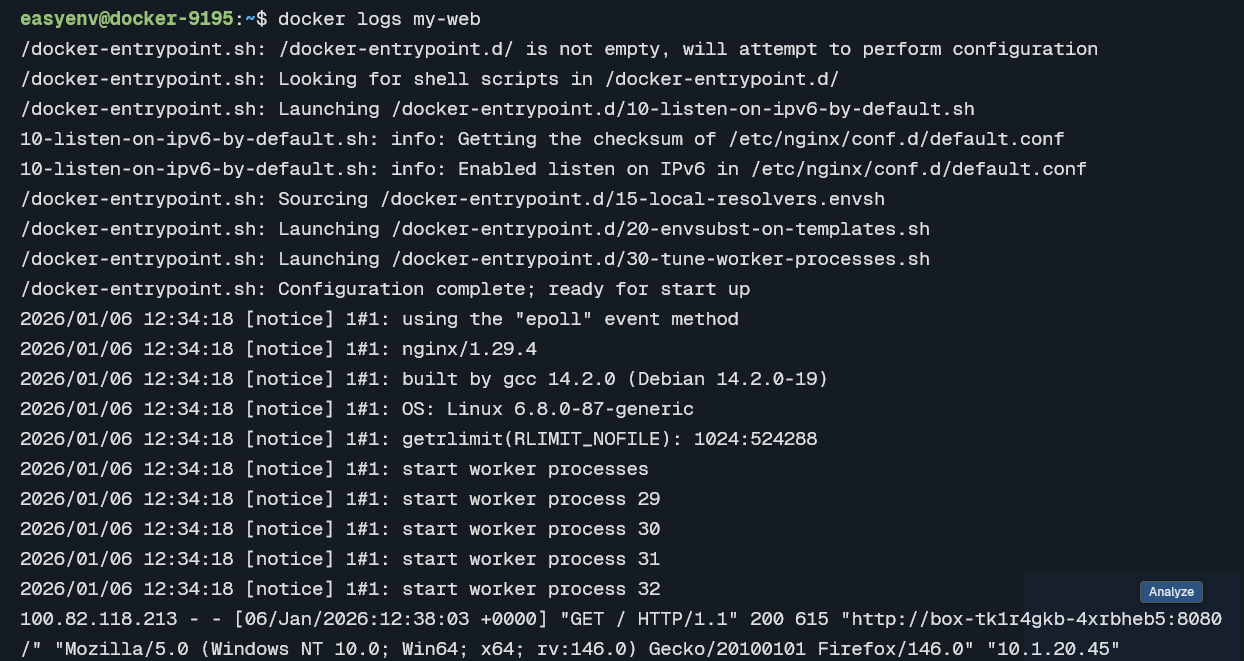
What it does: Shows messages the container has printed.
Command:
docker logs my-web
 d
d
What it does: Runs a command inside a running container.
Command:
docker exec -it my-web bash
What it does: Shows detailed technical info about a container.
Command:
docker inspect my-web
What it does: Stops a running container gracefully.
Command:
docker stop my-web
What it does: Restarts a stopped container.
Command:
docker start my-web
What it does: Permanently deletes a container.
Command:
docker rm my-web
What it does: Deletes an image.
Command:
docker rmi nginx
Run live coding sessions and take-home challenges in real production environments. Watch sessions back, score consistently, and hire with confidence.
More posts you might like
Move beyond memorized answers. Easyenv redefines hiring by focusing on critical thinking, soft skills, and effective AI usage to find the talent that truly matters.
The Real Cost of a Wrong DevOps Hire Hiring the wrong DevOps engineer can cost up to 2x their annual salary and ruin team culture. Beyond the budget, it leads to cloud waste, broken pipelines, and technical debt. Learn how EasyEnv reduces hiring risks by standardizing environments and simplifying talent evaluation.
Read more
Hiring DevOps engineers with traditional coding interviews is a recipe for failure. These interviews test skills that rarely show up in real DevOps work, like whiteboard algorithms.
Read more