
October 23, 2026·5 min read

These steps show you how to set up a new interview from start to finish
1. Go to Interview List
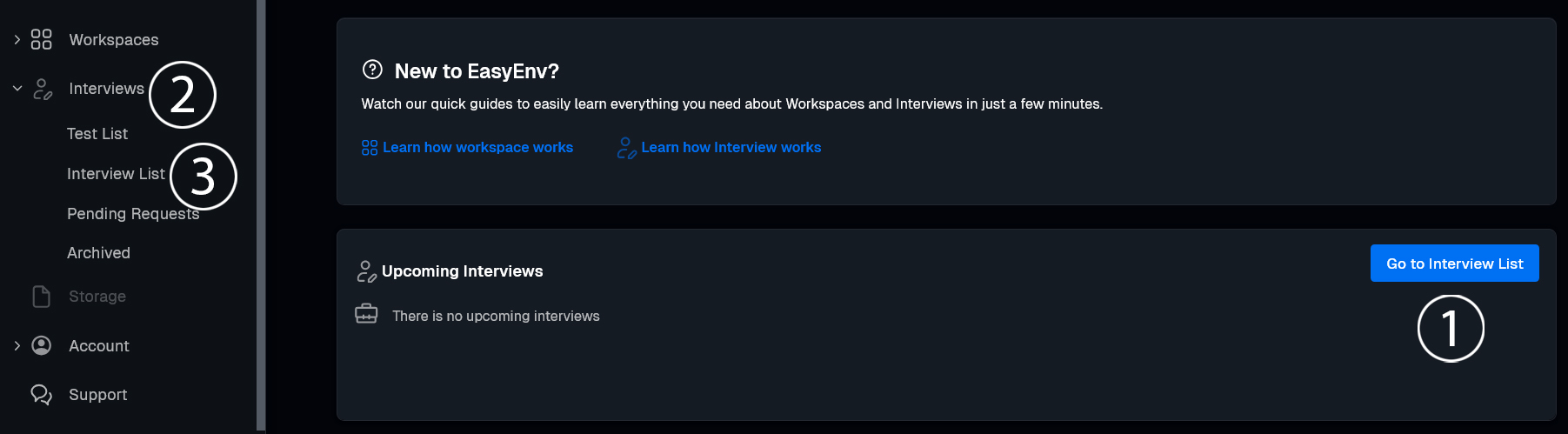
2. Add Interview
Click the blue + Add Interview button.

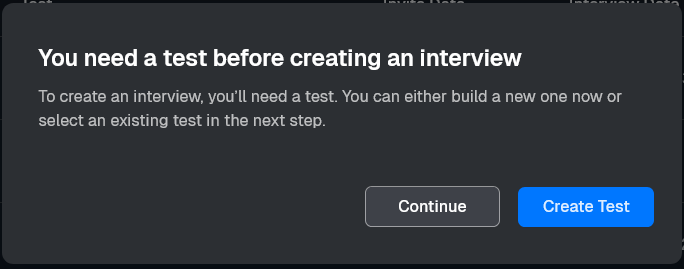
3. Test Requirement
A popup says You need a test before creating an interview.
4. Fill the Create New Interview form
Test title
Click Test title and choose a test from the list.
Candidate Details
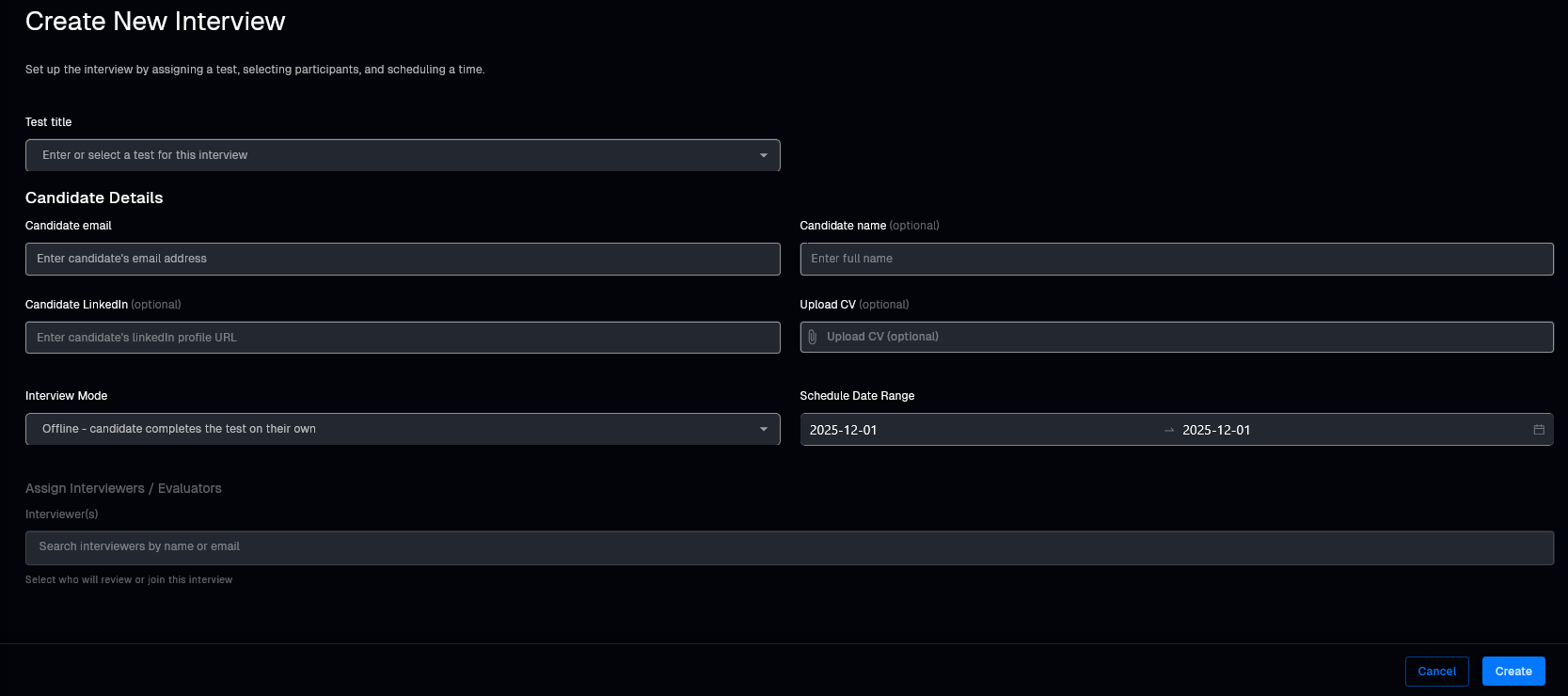
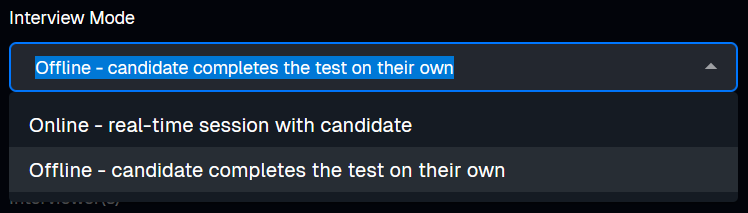
Interview Mode
Open the Interview Mode dropdown:
Schedule Date Range
Set the start and end date.
Assign Interviewers / Evaluators
In Interviewer(s), search by name or email and select who should join.
5. Create
When everything is ready, click Create in the bottom right corner.
Your interview is now created and ready to use.
Run live coding sessions and take-home challenges in real production environments. Watch sessions back, score consistently, and hire with confidence.
More posts you might like
A week inside the team answers nearly everything an interview is guessing at, and rules out most of the people worth hiring. Here is when a trial earns its cost, how to structure one that is fair, and what to run instead when it is the wrong tool.
Contract hiring skips the loop, which is the point, and then the work arrives and nobody can say whether it will survive the handover. Here is a single session that tests what actually matters for short engagements, and the four things to watch while it runs.
Read more
Support interviews test warmth and scripts, then the job turns out to be technical from the first ticket. Here are four tasks on a real box with a real symptom, reproducing a vague report, separating configuration from defect, reading the logs that matter, and writing the reply.
Read more
